Aarhus University Seal

Literature search for reviews in health sciences

On this page you can read about literature search for systematic reviews in the field of health sciences.

If you have a different academic discipline or purpose for your literature search, you may find it beneficial to check AU Library's pages for  systematic literature searches og reviews.


Where to find help ?

Contact:

Library services for AUH
Victor Albeck Bygningen
Vennelyst Boulevard 4
8000 Aarhus C.

Plan your search strategy and find search terms

Plan your search strategy 

An exhaustive literature search is a key part of a systematic review. You should design your search so it finds all relevant articles within your research area – or as many as possible. 

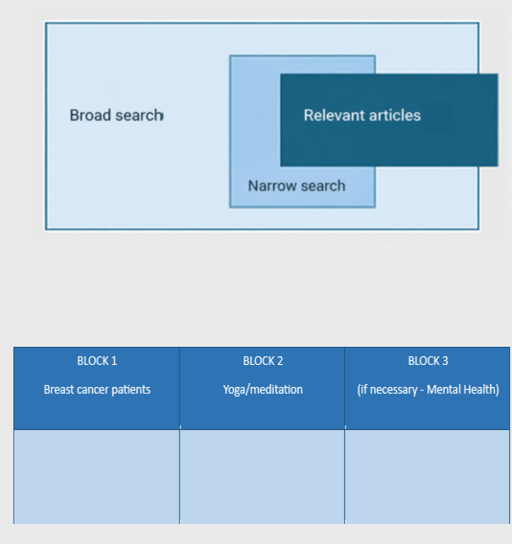
With a broad search, a large share of your results won't be relevant. With a narrow (or precise) search, a larger share of your results will be relevant, but you also increase the risk of missing important studies.  

Identify key concepts 

You start your systematic literature search by identifying key concepts in your research question. Each key concept works as a heading for a block in your search. 

Think carefully about which parts of your research question are relevant to your search. You often don't need to search for every element of your PICO, PICo, etc. The more blocks you combine in your search, the narrower it becomes, and the greater the risk that you miss relevant studies. 

 Example 

  • Does yoga and meditation have an effect on breast cancer patients' mental health? 

For an intervention question, you usually need to search on at least the patient group (breast cancer patients) and the intervention (yoga or meditation). 

For each key concept, you create a block where you note down your search terms. The fewer blocks you use in your search, the broader and more inclusive it becomes. 

You can narrow the search by adding a block for mental health. 
 

Controlled subject headings/free-text words 

Finding and choosing relevant search terms is an important part of your systematic search. In most databases, you generally search two types of data: 

  • Free text 

  • Controlled subject headings 

Controlled subject headings are terms that the database assigns to a reference. They vary from database to database and appear under headings like thesaurus, subject headings, or controlled vocabulary. In PubMed, they're called MeSH, and in Embase, they're called Emtree. 

The advantage of searching with controlled subject headings is that articles get tagged based on their content, even if they don't use the exact words in the text itself. Using controlled subject headings gives you greater precision and less "noise." See the video about MeSH terms. 

You'll find free-text words in, for example, the title, abstract, and the authors' own keywords – these are the most important fields for subject searching besides controlled subject headings. However, free text tems also appear in fields like journal names, author names, and author affiliations. Most databases don't search the full text of a reference. 

There are several reasons to use free-text words in your search. First, you can't always find a controlled subject heading that matches what you're looking for. Second, not every article gets assigned controlled subject headings. Third, some databases, like Web of Science and Scopus, don't use controlled subject headings at all. 

For a systematic review, a search typically combines controlled subject headings and free-text words, since this gives you the best chance of finding all relevant articles. 

Find search terms 

When you need to find search terms for your search, you might already have an idea of where to start. You can brainstorm synonyms, alternative spellings, and word variations on your own, with a colleague, or with an expert in the field. You can also look in textbooks or in the key articles you've already found. 

You can run test searches in a database using words you already know. Look at the articles' titles, abstracts, and keywords, as well as the controlled subject headings they're tagged with, and see if this gives you new ideas for search terms. 

You can also look up registers of controlled subject headings (the MeSH database, the Emtree database, thesauri, etc.). These are often built hierarchically, so you can decide how general or specific you want your search to be. Check each database to see how you include any subterms. 

You can also get help finding search terms with these tools: 

PubMed tools: 

  • Yale MeSH Analyzer: Enter PMIDs from relevant known articles to get an overview of MeSH terms and authors' keywords. 

  • PubReMiner: Enter a search string from PubMed (max. 10,000 hits) and get an overview of journals, authors, and the frequency of words and MeSH terms. 

AI tools: 

The AI tools mentioned below can be useful for getting inspiration for search terms. However, you can't use them to construct search strings or translate search strings between different databases.


Search techniques

AND/OR/NOT 

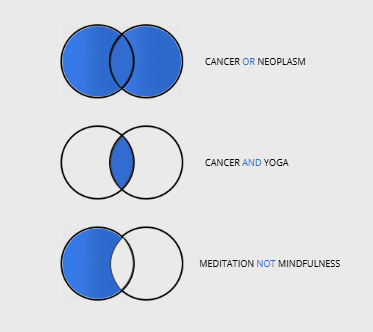
Most databases use Boolean operators (AND, OR, and NOT) to combine search terms. 

  • OR: You use this to combine your search terms within the same block. The more terms you combine with OR, the broader your search becomes. 

  • AND: You use this to combine your different blocks. The more blocks you combine with AND, the narrower your search becomes. 

  • NOT: You use this to exclude references that contain a specific word. In systematic reviews, it's usually best to avoid NOT, since you can easily end up excluding relevant references. 

Truncation, phrase searching, proximity operators 

Truncation is when you use a wildcard, for example * or ?. The truncation symbol replaces one or more letters and is usually placed at the end of your search term. In some databases, though, you can also place it in the middle or at the start of a word. Truncation is especially useful for finding different grammatical forms of a word, as well as different spellings, such as British and American English. 

You should use truncation carefully. The placement of the wildcard matters. For example, you might consider searching for the singular and plural forms instead. This way, you only get the exact word forms you want. 

Example: child* 
Here you'll find references with, for example, childbirth or childhood. In some cases, it makes more sense to search for child OR children instead. 

Example: "Nurs* role" 
Here you'll find, for example, "nursing role" or "nurses role." 

Example: behavio*r 
Here you'll find behavior or behaviour. 

Which symbol you should use, and exactly how it works, depends on the specific database. 


You use phrase searching when you want to make sure the database searches for exactly what you've written. You do this by putting one or more words in quotation marks. Phrase searching is especially useful for compound terms. 

Example: "breast cancer" 
Here you'll only find references that contain the exact phrase "breast cancer." In many databases, a search without quotation marks gets translated into the search breast AND cancer, where both words must appear, but not necessarily together or in that order. 


You use proximity operators to specify the maximum distance allowed between your search terms, and whether the order is fixed or not. Proximity operators give you both more flexibility and more control in your search. 

Example: Breast NEAR/3 cancer 
Here you'll find references where the word breast appears no more than 3 words from the word cancer. This search also catches phrases like "cancer of the breast" and "breast and lung cancer." 

Systematic block searching

Block searching 

You collect your search terms in a block table (download your block table), as you find them. It's a good idea to test your search along the way, both to get a sense of how well it works and to get inspiration for more search terms. 

Example 

  • Does yoga and meditation have an effect on breast cancer patients' mental health? 

BLOCK 1

Breast cancer patients


AND


BLOCK 2

Yoga/meditation

OR 

OR 

Controlled headings:  

 "Breast Neoplasms"[Mesh]  


Free text: 

"breast neoplasm*"

"mammary cancer"

"breast cancer" 

Controlled headings:  

 "Yoga"[Mesh]

"Meditation"[Mesh]


Free text:

Yoga

Meditat*

Systematic block searching 
 

Once you've identified all your relevant search terms – controlled subject headings, free-text words, synonyms, spellings, etc. – and organized them into blocks, you're ready to search systematically across the different databases. 

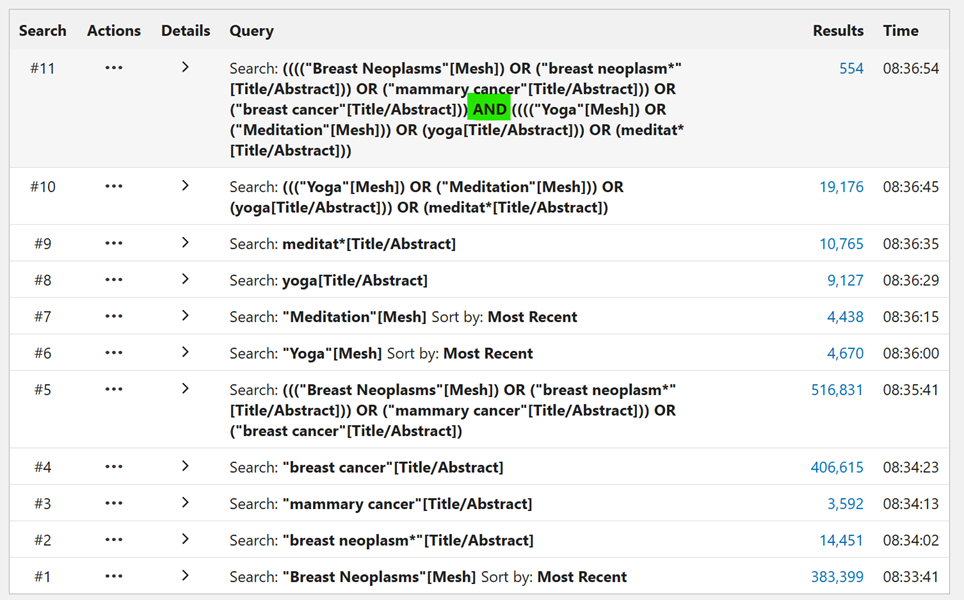
You start by searching each individual term one at a time, then combine the terms within each block using the OR operator. Once you've built all your blocks, you combine the blocks using the AND operator. (See the section on search techniques.) 

Test your search 
 

You can test your search by checking whether the articles you already know about are included. You can also ask a colleague to review your search – for example, using the PRESS tool (Peer Review of Electronic Search Strategy). 

In PubMed, a search might look like this: 

Databases

PubMed 
This is the most important database for health science research articles. It covers areas like medicine, molecular biology, natural science, dentistry, biology, public health, nursing science, sports, psychology, and health science. Quick guide to PubMed. 

Embase 
This database contains health science research articles, with a particular focus on biomedicine, pharmacology, and toxicology. 

Cinahl 
A database with literature on nursing and healthcare, biomedicine, physiotherapy, occupational therapy, and more. 

Cochrane 
The Cochrane Library is a collection of databases published by the Cochrane Collaboration. At its core are the Cochrane Reviews, which are systematic evaluations and meta-analyses that summarize and interpret medical research findings. 

PsycINFO 
A database with literature on psychology. Here you'll find references to literature covering psychological aspects of medicine, psychiatry, nursing, sociology, education, physiology, anthropology, and more. 

SPORTDiscus 
SPORTDiscus indexes literature on many aspects of sport and exercise: sports medicine, fitness, coaching, legal matters, sports facilities, doping, prevention, rehabilitation, and nutrition. 

Scopus and Web of Science 
Databases with research articles from all fields. In Scopus and Web of Science, you can run citation searches, so you can see how many times other articles have cited a particular article. 

More health science databases 
You can find more databases in the Royal Danish Library's database list. 


Database overview


PubMed 


EMBASE.COM  (Elsevier)

CINAHL (Ebsco)

COCHRANE

Controlled Vocabulary

MeSH

Exploded:
Exercise[Mesh]

Non-exploded:
Exercise [Mesh:NoExp]

EMTREE

Exploded:
'exercise'/exp

Non-exploded:
'exercise'/de

CINAHL Heading

Exploded:
MH "Exercise+"

Non-exploded:
MH "Exercise"

MeSH

MeSH descriptor: [Exercise] explode all trees

MeSH descriptor: [Exercise] this term only

Free text

exercise[Title/Abstract]

OR

exercise[tiab]

exercise:ti,ab,kw

XB exercise 

(exercise):ti,ab,kw

Phrase

“risk factor”

Only phrases included in the Phrase Index can be searched. If a phrase is not in the index, it can be searched using [tiab:~0]

Single or double quotes

“risk factor”

“risk factor”

Stop words are never searched

E.g. “Hospital at home” = “hospital … home”

“risk factor”

Truncation

organization*

OR

Organi*ation*


Terms must begin with at least 4 characters

*  =  0 or more letters

organization*

OR

organi*ation*

? = 1 letter

$= 0 or 1 letter

*  = 0 or more letters
# =  1 or 0

?=1 character (inside a word)


*  = 0 or more letters
word*
*word 
wom?n  (0 or 1)

Truncation

in phrases

”risk factor*”

risk factor*[tiab]

risk-factor*

"nurs* role*"

”risk factor*”

“risk factor*”:ti,ab,kw

risk-factor*

"nurs* role*"

”risk factor*”

"nurs* role*"

Risk NEXT factor*

Proximity Operators


"search terms"[field:~N]


NEAR/#
   (any order) 
 

NEXT/#
  (same order)


N#
(any order)

W#
(same order)


NEAR (max 6) 

NEAR/# 

NEXT ( same order)

Default 
Boolean 
Phrase

AND

processes searches in a left-to-right sequence

AND

processes searches in a left-to-right sequence

AND 

 each result contains all search terms.


All NOT operations first

All AND operations second

All OR operations last

"phrase"

Exclude animal studies

NOT (animals[mesh] NOT humans[mesh])

NOT ([animals]/lim NOT [humans]/lim)


Export

Max 10 000.
 Choose "Send to" and “Citation Manager” 
(use for reference management tool) 

Chose - “Save” - “All results” - Format: “PubMed” 
(use for Covidence) 

Sign in required for data export.
Max 10 000. 
Click “Select number of items”, "Export" and "RIS format..."

Max 25 000 via e-mail.

Sign in or create an account 
From the search results: Select the drop-down arrow → Export results 
Enter your email, select RIS, and click Send. 
After a few minutes, you will receive an email with a file that can be imported. 
 

Choose "Select all" and "Export selected citation(s)". Choose "RIS (EndNote)", "Include abstract" and "Download".

Mapping

Mapping: Untagged terms that are entered in the search box are matched to Mesh terms, alternative spellings, journals ect.

Truncation, quotation mark and field search turn off automatic mapping


Search details: show how a search was translated


When you enter search terms as a phrase, PubMed will not perform automatic term mapping that includes the MeSH term and any specific terms indented under that term in the MeSH hierarchy. For example, "health planning" will include citations that are indexed to the MeSH term, Health Planning, but will not include the more specific terms, e.g., Health Care Rationing, Health Care Reform, Health Plan Implementation, that are included in the automatic MeSH mapping.

Mapping:

Embase maps (automatically matches) a word or phrase to its corresponding Emtree thesaurus term and then searches for this term in all the index fields.


By default on Search Tab, common variants of the word are searched.

Automatic stemming can be disabled if search terms include truncation(*)

Hyphens

Same as space but if the phrase is not found in the phrase index it will not return any results

Same as quotation marks “ ”

Same as space

Same as space

Update search

#x AND ("2019/07/01"[CRDT] : "3000"[CRDT] OR "2019/07/01"[EDAT] : "3000"[EDAT] OR "2019/07/01"[MHDA] : "3000"[MHDA])

#x AND [07-01-2019]/sd NOT [31-12-2024]/sd

(EM 20190701- OR DT 20190701-)

Use "Date" filter

Note: Use only if necessary; this approach is imperfect and may miss records

Filters

Citations may be excluded for some filter selections because they have not yet completed the MEDLINE indexing process.


Adding a filter is sometimes equivalent to adding a non-exploded Emtree term

'obesity'/de = 'obesity'/dm


PsycInfo  (ProQuest)

Scopus

Web of Science
WOS

MEDLINE  (Ovid)

Controlled 

vocabulary

Thesaurus/


MAINSUBJECT.EXACT.EXPLODE("Exercise")


MAINSUBJECT.EXACT("Exercise")


Has no controlled vocabulary, free-text only


Has no controlled vocabulary, free-text only

MeSH

Exploded:

Exp/Exercise/

Non-exploded:

Exercise/

Free text

tiab(Exercise)

TITLE-ABS-KEY ( exercise )

Topic = Title, Abstract, Author Keywords & Keywords Plus

exercise.ti,ab,kf.

Phrase

“ “

specific phrase (“”)

exact match {}

Use “ “ to find exact phrases and to turn off lemmatization


Truncation

word* or w*rd (0-5 letters)

Word?  or wo?rd (0 or1 letter)

[*n] is used to denote up to how many characters you want to truncate


As an alternative to wildcards and truncation, you can use curly brackets {} in quotation marks to automatically look for spelling and form variants of the words contained within a specific phrase

No left hand truncation

*=  0 or more letters
*word or word*

? = 1 letter

Word? / wom?n


*=  0 or more letters

*word OR word*

? = 1 letter

Word? / wom?n

$= 0 or 1 letter

Terms must begin with at least 3 characters

(only right hand truncation in Al Fields.

Also Right hand truncation in Topic and Title)

word* 
colo?r  (1 or 0)

Truncation

in phrases

”risk factor*”

In exact match, Wildcards are searched as actual characters

“risk factor*”

"nurs* role*"

Risk factor*

Proximity Operators

NEAR  by default is 4

NEAR/#  in any order

PRE/# in the specified order

PRE/0 is identical to a hyphen

W/# (any order)

Pre/# (same order)

NEAR/#

adj   (same order) 
adj#   (any order)

Default 
Boolean 
Phrase

AND

OR

W/n, PRE/n

AND

AND NOT

AND

------------

Exclude animal studies


NOT (animals NOT humans).sh.

Export

Sign in, save search, Export result (wait)

Export , RIS, choose number of documents, mark: Citation information, Bibliographical information, Abstract & keywords, Export

Max 1 000.
 Export, choose: "Save to EndNote desktop" or RIS.


Mapping

By default, ProQuest evaluates your terms to also look for US/UK spelling variants (color, colour), and English language form variants such as comparatives (smaller, bigger), superlatives (smallest, biggest), and plurals (tree, trees).

Put word in “ “ to turn off

Using the singular form of a word in your search retrieves the singular, plural, and possessive forms of most words.

Scopus applies word stemming to fields containing text (not to names, affiliations, dates, or numbers).


Stemming and lemmatization are closely related. The difference is that stemming merely drops suffixes such as -ing and -es, while lemmatization makes use of dictionaries that define pairs and clusters (e.g., defense, defence) of words with the same meaning or with a shared morphological structure.


More Options opens Exact search which turns stemming and lemming off


Hyphens

Same as space

Heart-attack = “Heart attack”

Same as space


Update search


ORIG-LOAD-DATE AFT 20190630

Two steps: From Advanced Search Query Builder > Query Preview:

LD=(2019-07-01/2024-12-31)

OR (choose the relevant years in the left-hand column)

(201907* OR 201908* OR 201909* OR 20191* OR 202*).dt,ez,da.

Limits and search filters

Limits 

In most databases, you can limit your search results by time period, language, age, sex, and similar criteria. However, be aware that filters – apart from time and language – work the same way as adding a controlled subject heading with AND, so they can narrow your search significantly. 

Search filters 

A search filter is a ready-made search that limits your results, as broadly as possible, to things like specific age groups, publication types, or animal studies. Keep in mind that a search filter needs to match the specific database and database provider you have access to. 

Here you'll find examples of validated search filters: 

The ISSG search filter ressource
CADTH search filter
Cochranes RCT (randomized controlled trial) search filter
Cosmin - Consensus-based Standards for the selection of health Measurement Instruments
University of Alberta - Health Sciences Search Filters


 Read more: Frandsen, T. F., & Eriksen, M. B. (2022). Anvendelse af søgefiltre i systematiske søgninger. Ugeskrift for Læger, 184(19), Artikel V12210901. 
 

Supplementary search methods

Citation searching 

With citation searching, you review the reference lists (backward citation searching) and citations (forward citation searching) of every included article in your review. In Web of Science and Scopus, you can look up the included articles and see both their reference lists and their citations. 

The TARCiS statement includes 10 evidence-based recommendations and 4 research priorities on when and how to do citation searching and how to report it. 

See TARCiS (Terminology, Application, and Reporting of Citation Searching), and consider starting with the checklist.

Read more: Hirt, J., Nordhausen, T., Fuerst, T., Ewald, H., & Appenzeller-Herzog, C. (2024). Guidance on terminology, application, and reporting of citation searching: the TARCiS statement. BMJ, 385, e078384. https://doi.org/10.1136/bmj-2023-078384 

AI-tools

You can use the AI tools below to get inspiration for your problem statement and search terms, and to check whether you've missed anything in your systematic search. However, they can't replace the systematic search or stand alone, and you should always stay critically aware of the sources when it comes to algorithms, bias, and hallucinations.

Grey literature 

Grey literature is literature produced outside the traditional publishing and distribution channels. This can include reports, guidelines, policies, newsletters, white papers, preprints, theses, and more. 

Many traditional databases include preprints and conference abstracts, including Embase and Web of Science. In Web of Science, you can also search ProQuest™ Dissertations & Theses Citation Index. 

You can find other grey literature on sites like these:

https://greymatters.cadth.ca/

https://www.base-search.net/

https://trialsearch.who.int/Default.aspx

https://clinicaltrials.gov/

https://www.clinicaltrialsregister.eu/ctr-search/search

https://www.nice.org.uk/guidance

https://www.tripdatabase.com/

https://guidelines.ebmportal.com/
 

Hand searching 

With hand searching, you go through selected journals or conference publications page by page to find relevant articles that might have been missed in your systematic literature search. 

Documentation

To make your review as transparent and reproducible as possible, it is crucial to document the various steps in the process, including literature searching, screening, and selection, among others. 
 

Reporting standards 

Reporting standards have been developed to ensure complete, accurate, and transparent reporting of reviews. PRISMA (Preferred Reporting Items for Systematic Reviews and Meta-analyses) is one of the most widely used reporting standards. 

PRISMA is a tool consisting of a checklist and a flow diagram that outlines the minimum requirements for reporting a systematic review or meta-analysis. Under Extensions, you can find various checklists for specific parts of the review (such as literature search, abstract, protocol) as well as for different types of reviews (such as scoping reviews, network meta-analyses).  

Read more: Frandsen, T. F., & Eriksen, M. B. (2024). Afrapportering af systematiske søgninger. Ugeskrift for Læger, 186(8), Artikel V06230420. https://ugeskriftet.dk/videnskab/afrapportering-af-systematiske-sogninger
 

Document your literature search  
 

When documenting your literature search, you should include at a minimum: 

  • Databases Searched: Specify which databases you have searched. 

  • Search Terms: List the terms used (both free-text and controlled vocabulary) and how they were combined. 

  • Search Dates: Indicate when the searches were conducted. 

  • Search Limits: Note any limitations applied to your search (such as language, publication year, etc.). 

  • Search Results: Report the number of references retrieved. 

  • Supplementary Search Methods: Describe any additional search methods you used.  


The PRISMA-S 2020 Checklist recommends including precise search strategies for each database you have searched (Exampel).

Updating your literature search

Another reason to document your literature search precisely is that it often takes quite a while before publication. Because of this, publishers may require you to update your original search before the article gets published. According to the Cochrane Handbook, you should update your search if it's older than 12 months – and ideally already at 6 months. 

You can update your search by limiting it to a specific time interval, but this risks missing relevant studies that were indexed after your last search. A better approach is to limit your search to references added to the database since your last search, rather than references published during that period. Read more here: https://libraryguides.mcgill.ca/knowledge-syntheses/updating 

In most databases, you can create a profile and save your searches, which makes it easier to update them later. 

If you use Covidence, you'll find tips for updating your search in the Covidence Knowledge Base. Save a copy of the original PRISMA flowchart before you update.


AI tools for literature searching

AI search tools can supplement your other literature searches, for example at the beginning or the end of your search process. The tools are constantly evolving and often include both free and paid features. The AI tools typically search through content from open, scientific archives.

See AI search tools and open archives

AI search tools

  • Asta
    Ask an academic question in ‘Find papers’ and get an answer based on selected sources from the open archive Semantic Scholar. Asta does a thorough ”deep search” when trying to find the most relevant sources. Create a free user profile to save your searches.
  • Elicit
    Ask an academic question in ‘Find papers’ and get an answer based on selected sources from the open archive Semantic Scholar. The answer is supplemented by a table with key points from the sources. Requires a free user profile.
  • Inciteful
    Enter an article title or DOI and get a network of articles that share citations with the entered article. The citation network is based on content from the open archives OpenAlex, Semantic Scholar, Crossref, and OpenCitations.
  • Perplexity
    Ask an academic question and get an answer based on selected sources. Choose ‘Academic’ and search within scientific sources from the open archive Semantic Scholar and the PubMed database. Create a free user profile to save your searches.
  • ResearchRabbit
    Enter one or more articles or DOIs and get a network of articles that share citations with the entered articles. The citation network is based on content from open archives such as OpenAlex and Semantic Scholar. Requires a free user profile.
  • Scite
    Ask an academic question in ’Assistant’ or ’Tables’ or do a keyword search in ’Search’ and get an answer based on selected sources from Scite’s own scientific database. For most sources a citation network classifies whether a citation mentions, supports, or contrasts the source. As an AU user you have access through a license from AU Library. Create a user profile to get access to additional features.
  • Undermind
    Ask an academic question and get an answer based on selected sources from the open archive Semantic Scholar. Undermind does a thorough ”deep search” when trying to find the most relevant sources. Requires a free user profile.

Open archives

Open, scientific archives contain titles, abstracts, and sometimes the full text of a large number of articles, working papers, etc. The content in the open archives is not selected in the same way as in established scientific databases, so reflect critically on your search results. You can search the open archives either via an AI search tool or directly in the archive.

  • OpenAlex
    Retrieves data from sources such as PubMed, arXiv, DOAJ, Unpaywall, Zenodo, and ORCID. 
  • Semantic Scholar
    Retrieves data from sources such as PubMed, arXiv, and publishers like Sage, Springer, Wiley, and Taylor & Francis.
  • Lens
    Retrieves data from sources such as PubMed, OpenAlex, Crossref, and Unpaywall.
  • Core
    Collects metadata and, in many cases, the full text of scientific articles.
  • Crossref
    Collaborates with a wide range of publishers and institutions to provide open metadata, e.g., on articles, books, preprints, datasets, etc.